Vault Management
Control access to your encrypted data.
Understanding the Vault
The vault is Docket's encryption container. When encrypted mode is enabled:
- Locked — Data is encrypted, inaccessible
- Unlocked — Data is decrypted, accessible
Unlocking the Vault
When you launch Docket with an encrypted vault, you'll see the unlock screen:
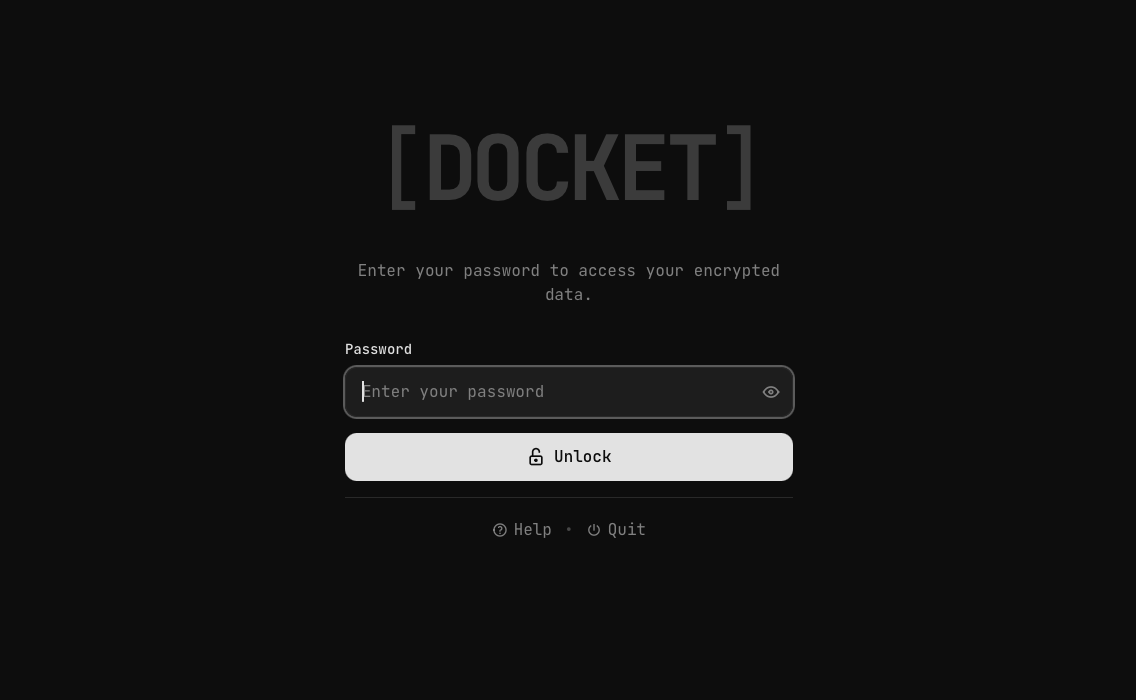
On App Launch
- Launch Docket from your USB
- Enter your vault password
- Click Unlock
- Access your data
Password Entry
- Passwords are never stored
- Only the derived key is kept in memory
- Wrong password shows an error
Locking the Vault
Manual Lock
Lock your Docket anytime from the side menu by clicking the Lock button:
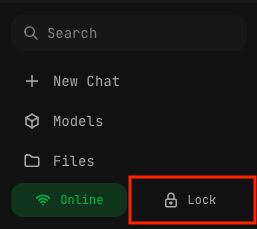
Automatic Lock
The vault locks automatically when:
| Event | Action |
|---|---|
| USB disconnected | Immediate lock (within 2 seconds) |
| App closed | Lock on exit |
| Lock button clicked | Immediate lock |
What Happens on Lock
- Keys wiped — Encryption keys zeroed from memory
- UI cleared — All decrypted content removed from display
- Sessions invalidated — All media tokens expire
Changing Your Password
- Go to Settings
- Find Security section
- Click Change Password
- Enter current password
- Enter new password (twice)
- Click Save
The database is re-encrypted with your new password. Files remain encrypted with their individual keys.
Forgot Password?
No Recovery
There is no way to recover a forgotten password. Your encrypted data will be permanently inaccessible.
If you forgot your password, you can reset your Docket from the login screen:
- On the unlock screen, click the Help button
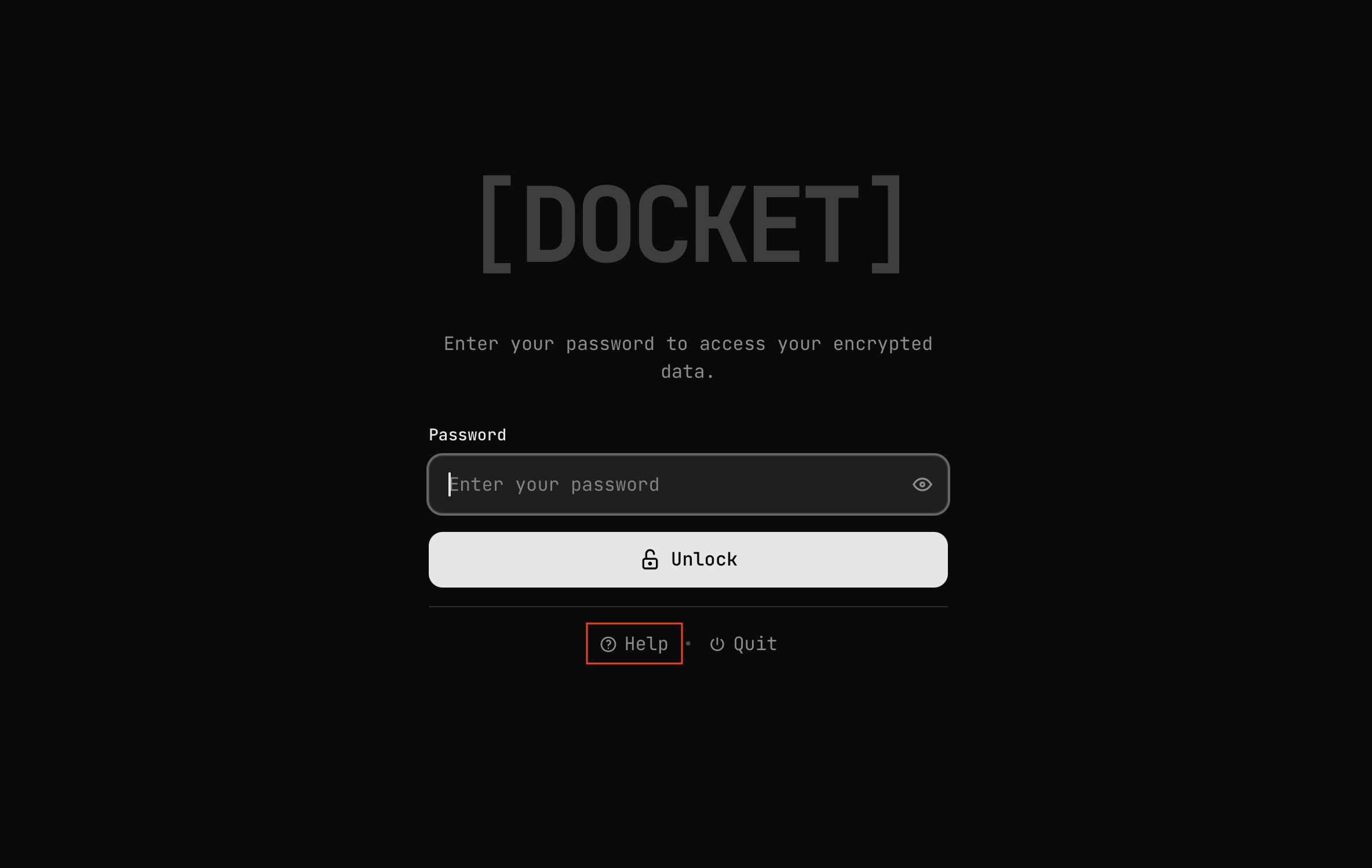
- In the Help dialog, click Reset my Docket...
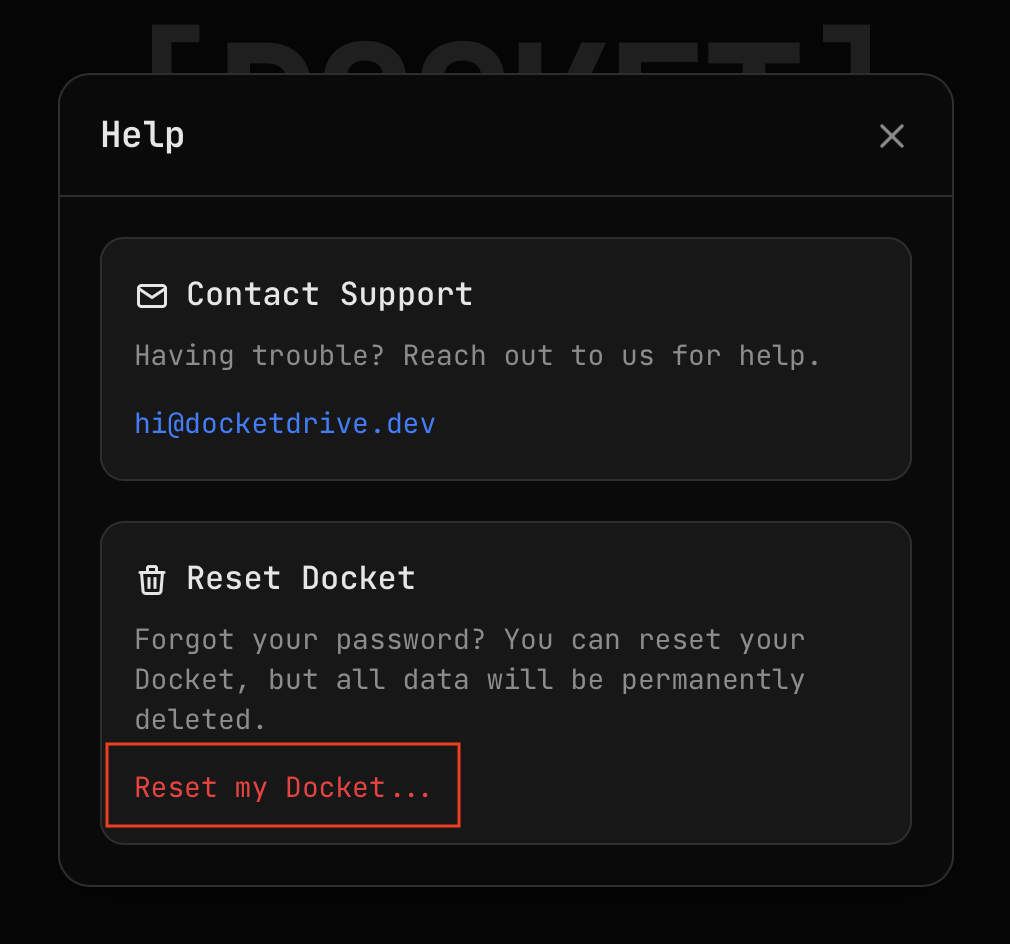
- Type
RESETto confirm and click Reset & Start Fresh
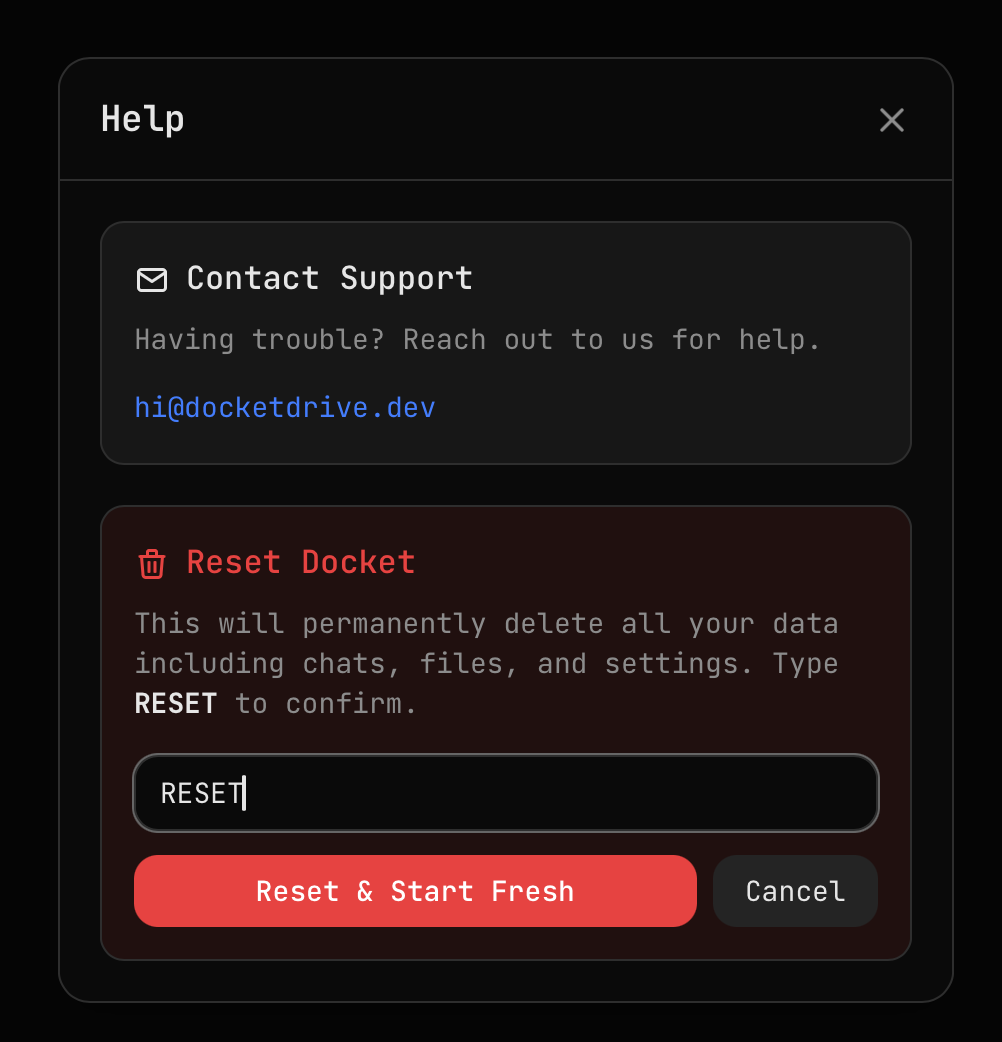
- All encrypted data is permanently deleted
- Docket restarts and you can set up a new vault
Best Practices
Password Strength
- Use at least 12 characters
- Mix letters, numbers, and symbols
- Don't reuse passwords from other services
- Consider a passphrase (multiple words)
Backup Considerations
- Export important files before they're needed
- Consider keeping copies of critical data elsewhere
- Remember: exports are unencrypted
USB Safety
- Don't leave USB unattended while unlocked
- Disconnect USB when stepping away
- Lock manually if you can't remove the USB
Switching Encryption Modes
Enable Encryption
- Go to Settings
- Find Encryption toggle
- Click to enable
- Enter a password
- Wait for migration to complete
Disable Encryption
- Go to Settings
- Find Encryption toggle
- Click to disable
- Enter current password to confirm
- Wait for migration to complete
warning
Disabling encryption makes all data readable without a password.
Vault States
| State | Description |
|---|---|
| No Vault | First run, needs setup |
| Encrypted + Locked | Data protected, needs password |
| Encrypted + Unlocked | Data accessible |
| Unencrypted | No password, always accessible |