Chat Overview
The chat interface is the heart of Docket. Here's how to make the most of it.
Interface Layout
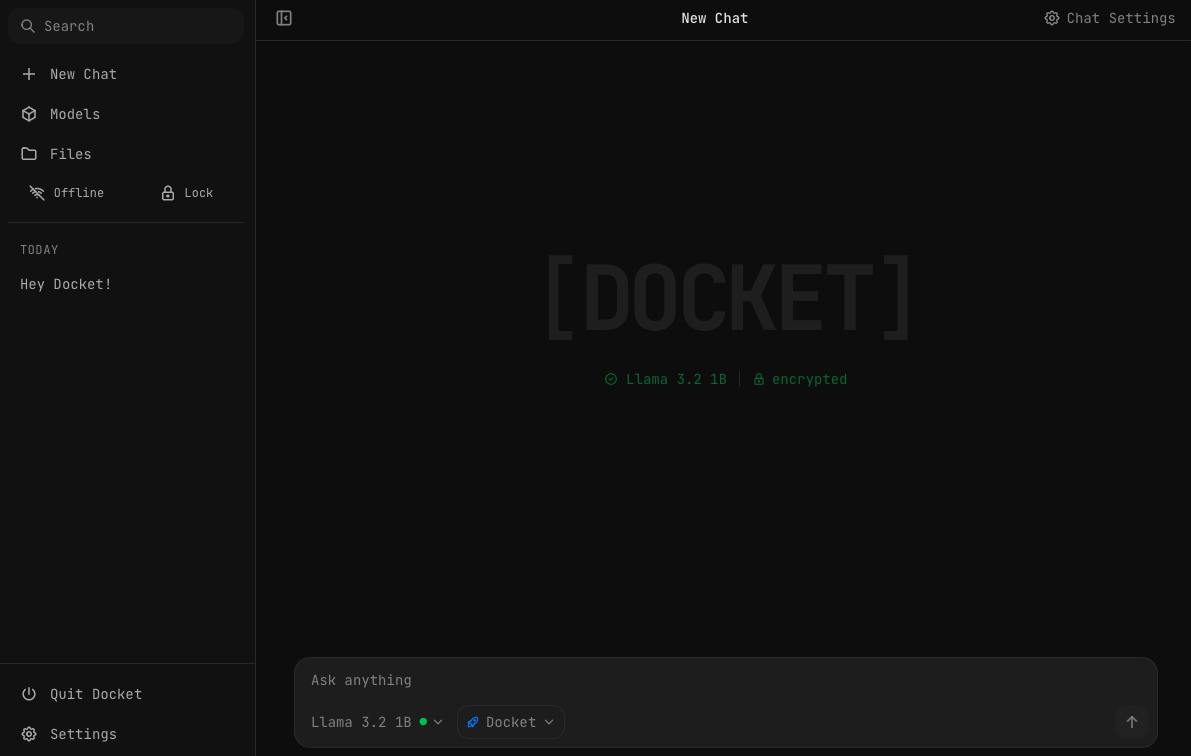
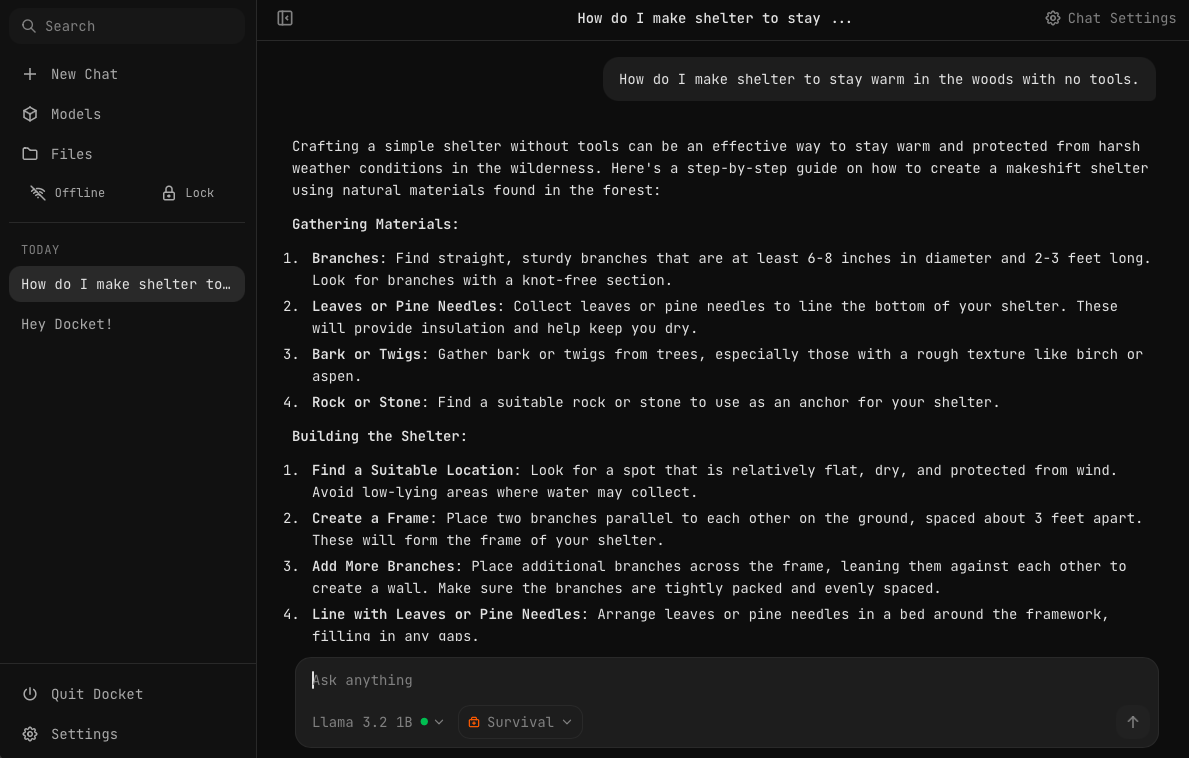
The chat interface includes:
- Sidebar — Access chats, models, files, and settings
- Chat area — Where conversations happen
- Input bar — Type messages, select models, and choose presets
- Status indicators — See loaded model and encryption status
Loading a Model
Before you can chat, you need to load a model. There are several ways to do this:
Option 1: From the Models Page
Navigate to Models in the sidebar to browse and load models. See Models Overview for details.
Option 2: Send a Message
Simply type a message and send it. If you have a default model set, it will automatically load and respond.
Option 3: Select from Chat
Click the model name dropdown in the input bar to see all available models, then click the one you want to load.
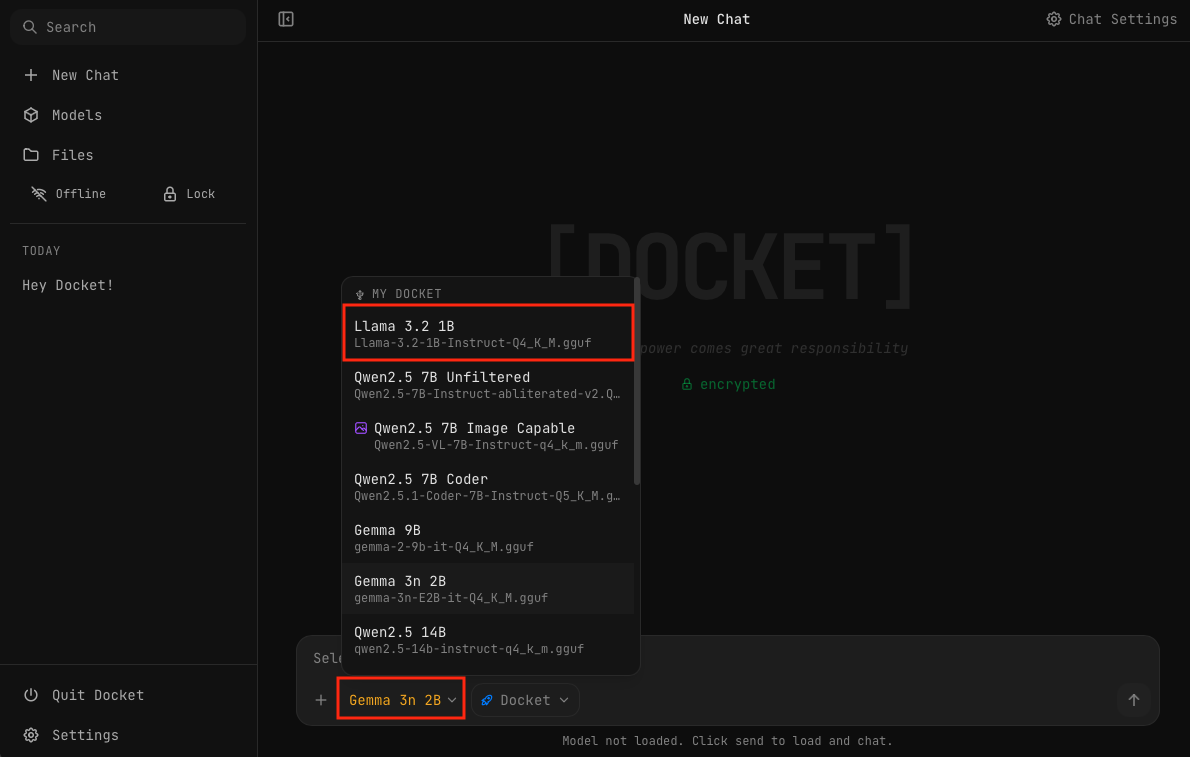
Model Loading
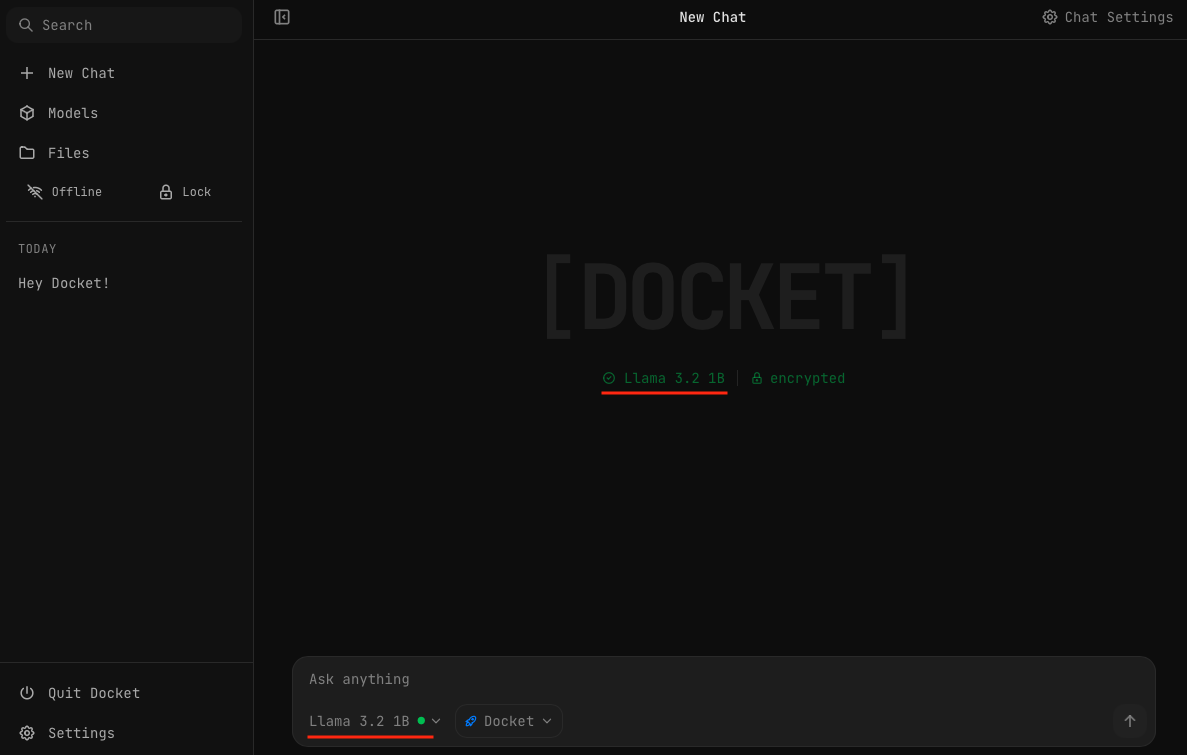
The model will begin loading. Once loaded, the model indicator turns green showing it's ready.
Chatting
Once a model is loaded, type your question and press send. The response streams live word-by-word in the chat.
Presets
Presets are pre-configured settings optimized for different tasks. Select a preset from the dropdown in the input bar next to the model selector.
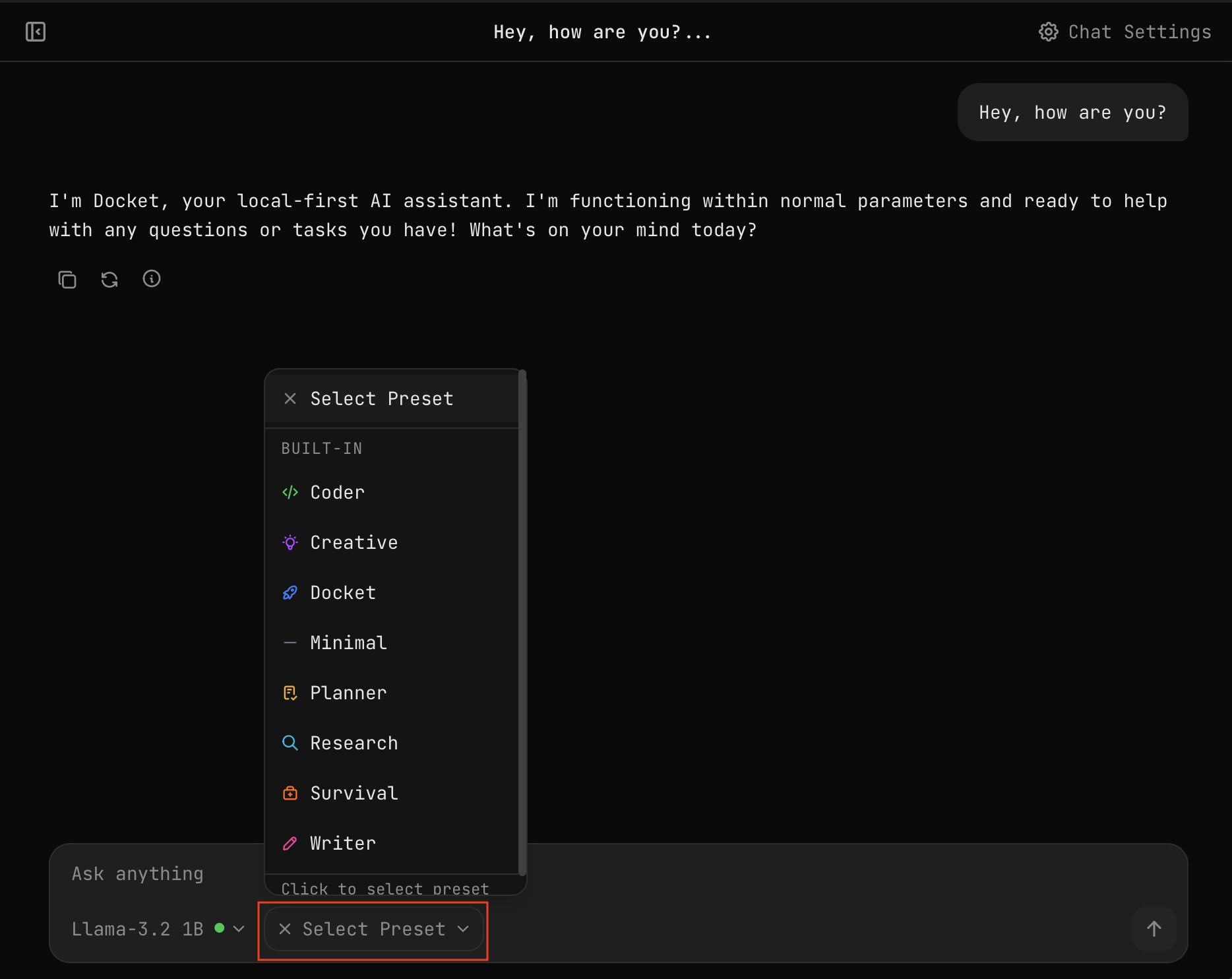
| Preset | Best For |
|---|---|
| Survival | Emergency preparedness, first aid, navigation |
| Coder | Programming and code generation |
| Research | Detailed, thorough analysis |
| Creative | Writing and brainstorming |
| Planner | Task organization and structured thinking |
| Minimal | Quick, concise answers |
You can also create your own custom presets. See Chat Settings for details.
Core Features
Real-time Streaming
Responses appear word-by-word as they're generated. You can:
- Stop generation — Click the stop button to halt a response
- Regenerate — Click the regenerate button to get a new response
- Copy — Copy any message to your clipboard
Markdown Support
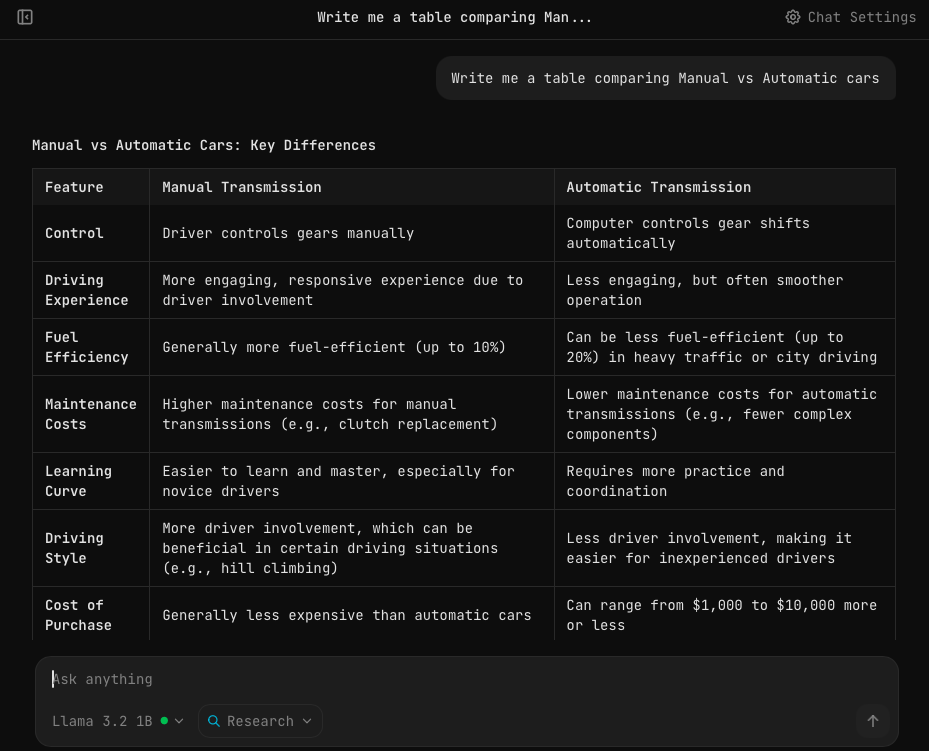
AI responses support full markdown formatting:
- Code blocks with syntax highlighting
- Tables for structured data
- Lists (bulleted and numbered)
- Bold, italic, and other text formatting
- Links and images
Code Execution
Docket can execute code directly in the chat. See Code Execution for details.
Image Attachments
With image-capable models like Qwen 2.5 7B Image Capable, you can attach images to your messages and ask questions about them.
To attach an image:
- Click the + button in the input bar, or
- Drag and drop an image directly into the chat
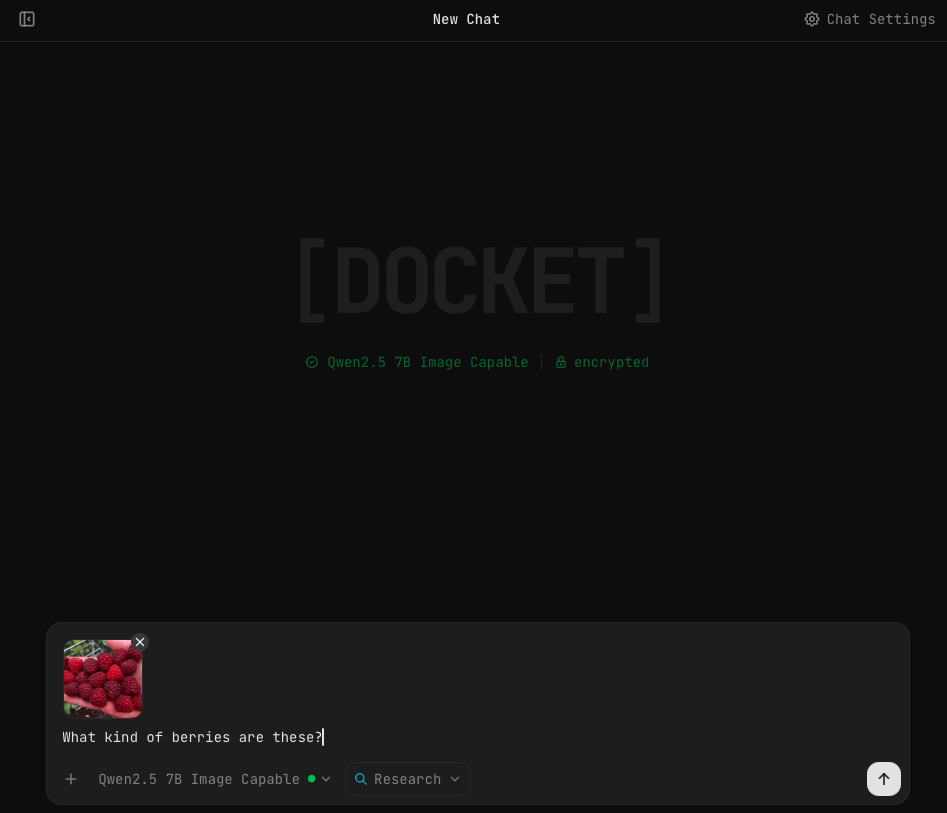
The model will analyze the image and respond to your question.
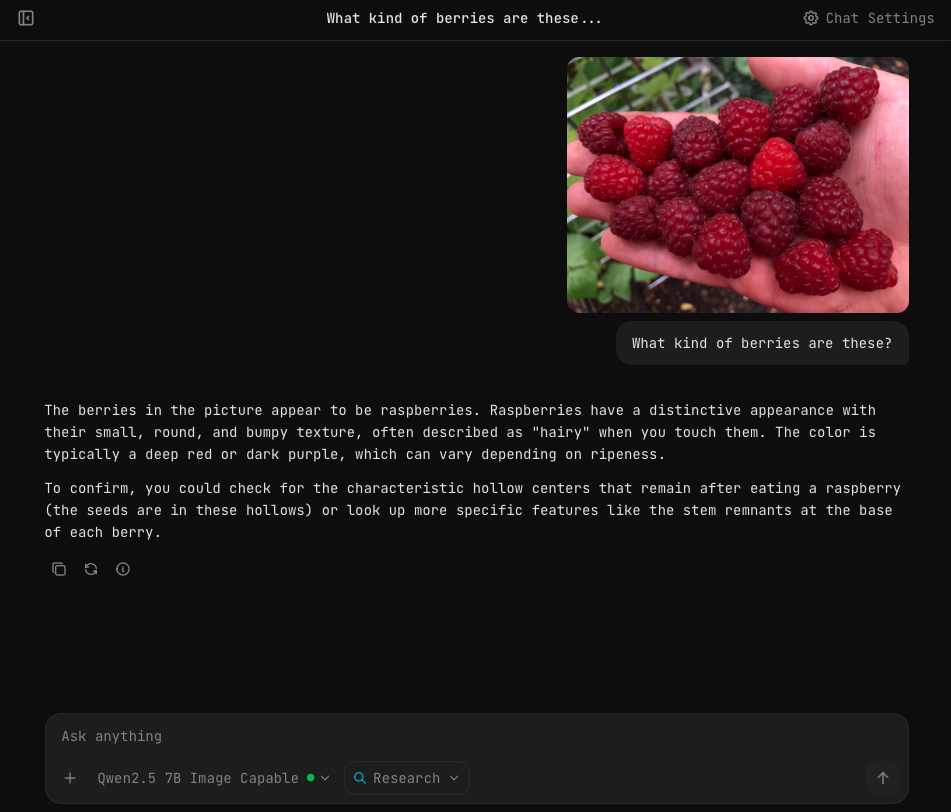
Images added to chats are automatically saved to your Files. If encryption is enabled, they're stored encrypted.
Chat History
All your conversations are automatically saved:
- Chats are organized by date (Today, Yesterday, Last 7 Days, etc.)
- Search through your chat history using the search bar
- Right-click chats for additional options (rename, delete)
Message Metadata
Click on any AI response to see generation metadata:
- Model used
- Generation time
- Token count
- Temperature and other settings
Next Steps
- Code Execution — Run code directly in chat
- Managing Conversations — Organize your chats
- Chat Settings — Customize parameters