First Run
Learn the basics of using Docket for your first AI conversation.
Understanding the Interface
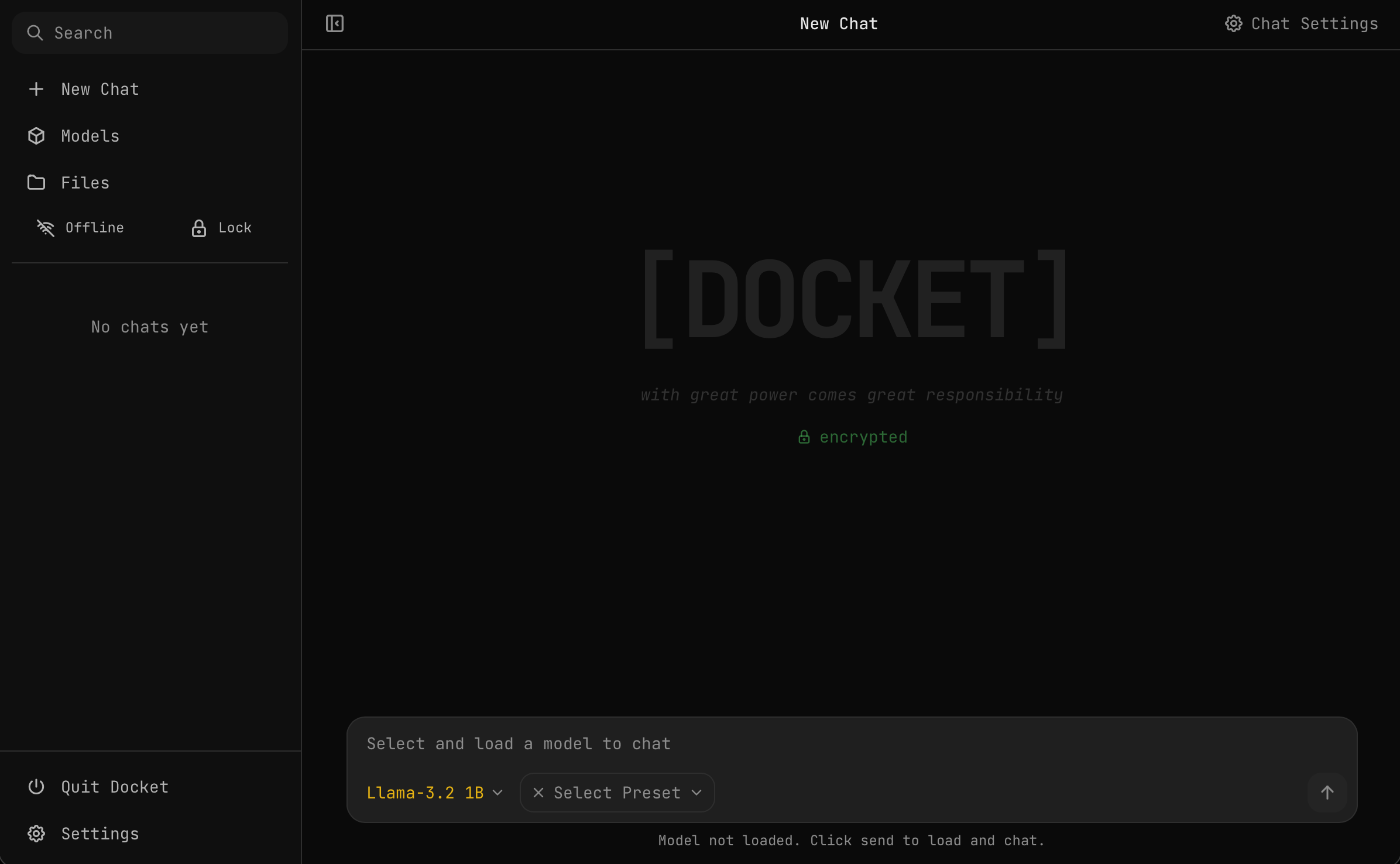
When you open Docket, you'll see:
- Sidebar (left) — Search, New Chat, Models, Files, Offline/Lock toggles, and chat history
- Chat Area (center) — Your conversations with AI models
- Model Selector (bottom) — Choose your model and preset
- Chat Settings (top right) — Adjust inference parameters
Starting Your First Chat
1. Select a Model
Click on the Models section in the sidebar to see available models:
| Model | Best For |
|---|---|
| Llama 3.2 (1B) | Fast responses, simple tasks |
| Gemma 3N | General purpose conversations |
| Qwen 2.5 Uncensored | Unrestricted responses |
| Qwen 2.5 VL Vision | Image understanding |
| Qwen 2.5 Coder | Programming assistance |
| Gemma 2 | Balanced performance |
| Qwen 2.5 14B | Complex reasoning (requires more RAM) |
2. Load the Model
- Click on your chosen model
- Click "Load Model"
- Wait for the model to load (load times vary depending on computer specs)
- The status indicator will show "Ready" when complete
3. Send a Message
- Type your message in the input field at the bottom
- Press Enter or click the send button
- Watch as the AI generates a response in real-time — completely offline and running locally on your machine
Tips for Better Results
- Be specific — Clear, detailed prompts get better responses
- Use system prompts — Set context in Chat Settings
- Adjust temperature — Lower for focused responses, higher for creativity
- Try different models — Each model has unique strengths
Managing Chats
- New Chat — Click the "+" button in the sidebar
- Rename — Double-click a chat title to edit it
- Delete — Right-click a chat and select "Delete"
Next Steps
- Chat Settings — Customize your experience
- Pre-installed Models — Learn about each model