Network Access Control
Control when Docket can access the internet.
The Network Toggle
Docket includes a global network toggle in the top bar:
- Off (default) — No external network requests
- On — Network access enabled
This is a hard security gate, not just a UI preference. When off, all external HTTP requests are blocked at the backend level.
Default: Offline
Docket defaults to offline mode because:
- Privacy — Your conversations stay on your device
- Security — No accidental data transmission
- Portability — Works anywhere, even without internet
What's Affected
When Network is OFF
| Feature | Status |
|---|---|
| Local AI models | ✅ Works |
| Chat with local models | ✅ Works |
| File storage | ✅ Works |
| Encryption | ✅ Works |
| OpenRouter API | ❌ Blocked |
| Model downloads | ❌ Blocked |
| Update checks | ❌ Blocked |
When Network is ON
All features work, including:
- OpenRouter API calls
- Hugging Face model downloads
- Update checking
What's Never Blocked
Local connections are always allowed:
- 127.0.0.1 — Local llama-server
- localhost — Local services
This ensures local AI inference always works regardless of the network toggle.
Enabling Network Access
- Click the network icon in the top bar
- Toggle to On
- Icon changes to indicate network is enabled
Security Implications
With Network OFF
- Complete offline operation
- No data can leave your device
- API models unavailable
- Maximum privacy
With Network ON
- API calls go to external servers
- Model downloads from Hugging Face
- Your prompts are sent to API providers
- Consider provider privacy policies
Persistence
The network setting is:
- Saved — Persists across app restarts
- Reset on lock — Returns to OFF when vault locks
- Reset on disconnect — Returns to OFF when USB is removed
This ensures you start in a secure state after any security event.
Visual Indicator
The network status is shown in the sidebar:
Online Mode:
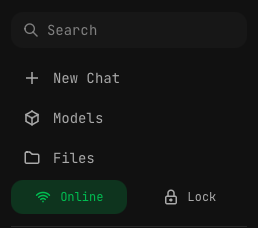
Offline Mode:

Best Practices
- Keep OFF by default — Only enable when needed
- Disable after use — Turn off when done with API models
- Use local models for sensitive data — API providers see your prompts
- Check before sensitive conversations — Verify network is off
Troubleshooting
"Network access disabled"
This error means you tried to use a feature requiring internet while network is off.
Solution: Toggle network on in the top bar.
API calls failing with network ON
- Check your internet connection
- Verify API key is configured
- Check if the API service is available
- Look for rate limiting messages
Network toggle not working
- Try clicking again
- Restart the app
- Check if vault is unlocked